Skip to content

Changelog

New updates and improvements to SEINō.

Email previews widget

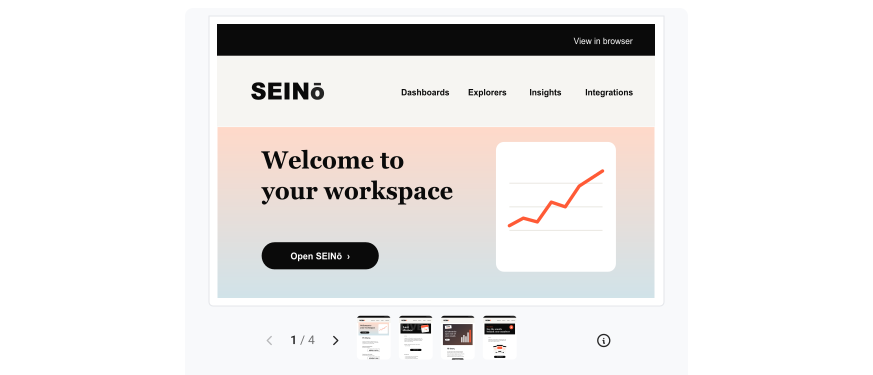
An Email previews widget as a Carousel, with one email, 1 / 4 and its arrows, and a row of small previews

Add the new Email previews widget to a dashboard to see which email the metrics are about.

Choose how the widget shows the emails:

  • Carousel: one email at a time. Use the arrows to go to the next email.
  • Grid: all emails side by side, each with its first metric.

Everyone can use the widget. It needs a link to the online version of each email in your data.

Learn more in our documentation

Two metrics widget

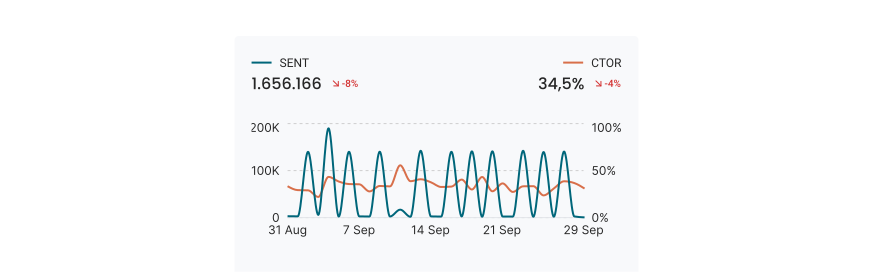
A Two metrics widget with Sent on the left axis and CTOR on the right, each with its value and change above the chart

The new Two metrics widget shows two metrics over time in one chart, each with its own axis and number format.

A tile in the KPI category

In the widget gallery, the KPI category has a fourth tile: Two metrics. A new widget starts with Sent and Revenue. Select other metrics in the Primary metric and Secondary metric fields.

Two-metric Graph widgets are now Two metrics widgets

Each Graph widget that showed two metrics is now a Two metrics widget, with the same metrics, colours and position on the dashboard. The Graph widget shows one metric again.

The Two metrics widget has no Group by. To split a metric into groups, use a Graph widget.

The Two metrics widget is available to everyone. Two metrics widget tells you when to use it and how to set it up.

Donut widget

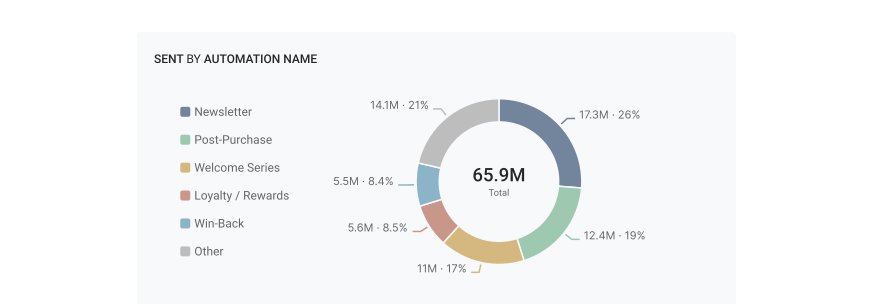
A Donut widget titled Sent by Automation name, with six slices, their value and share, and 65.9M Total in the centre

The new Donut widget divides one metric into groups and shows the share of each group. For example, it shows each automation’s share of all sent email.

A new Breakdown category

The widget gallery has a new Breakdown category. It holds the Donut and the List, which moves there from Details.

Metrics that add up

A donut shows only metrics whose groups add up to the Total, such as Sent or Revenue. Rates and averages do not add up, so the Metric list does not show them.

The top 5 and Other

The 5 largest groups each get a slice. The other groups go into one slice, Other, which is always last and grey. Point to Other to see the groups in it.

Compare with an earlier period

When the dashboard has a comparison period, the centre shows the change of the Total. The tooltip shows the change of each slice.

The Donut widget is available to everyone. Donut widget tells you when to use a donut and how to set it up.

A second metric on the Graph widget

A Graph widget with Sent on the left axis and CTOR on the right, each with its value and change above the chart

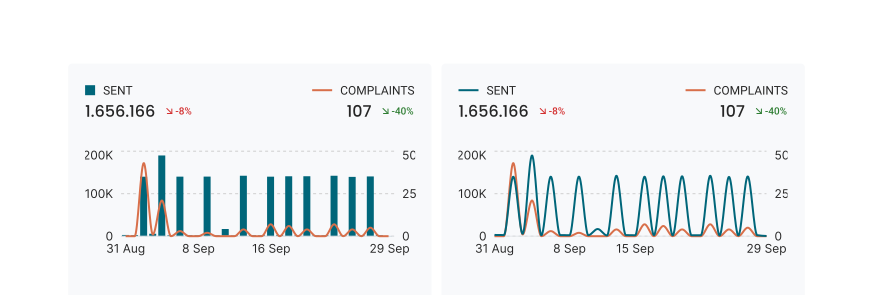
The Graph widget can now show two metrics, each with its own axis and number format. So you see sent volume and complaints in one graph. The Card and Tab widgets do not change.

Primary and secondary metric

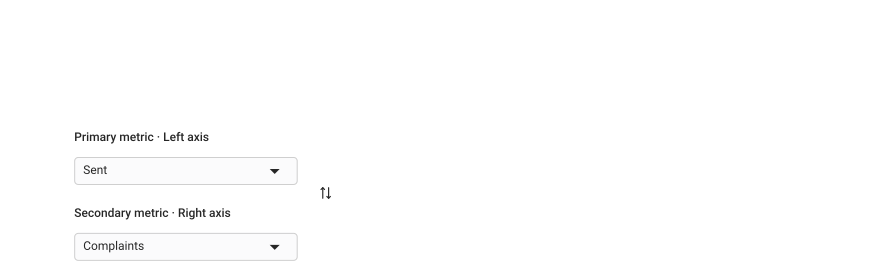
In the settings of a Graph widget, select a Primary metric for the left axis and a Secondary metric for the right axis. On a bar graph, the secondary metric shows as a line over the bars. Each metric has its own colour: select one, or let Automatic select a colour that is easy to tell apart.

The Primary metric field set to Sent on the left axis, the Secondary metric field set to Complaints on the right axis, and the swap button

With two metrics, you cannot use Group by, and the graph does not show the comparison period as a line.

Two metrics on the Graph widget are available to everyone.

KPI widget tells you how to set it up.

Fixes

  • Dashboards: Kept the colour of a graph when you change between lines and bars, or between time and categories.
  • Dashboards: Ignored a saved filter that no longer applies in a table widget, so the table loads.

Integrations

  • Klaviyo: Added the UTM source, medium, campaign, term and content of each email and SMS click, so you can split clicks by them.

Easier navigation between reports

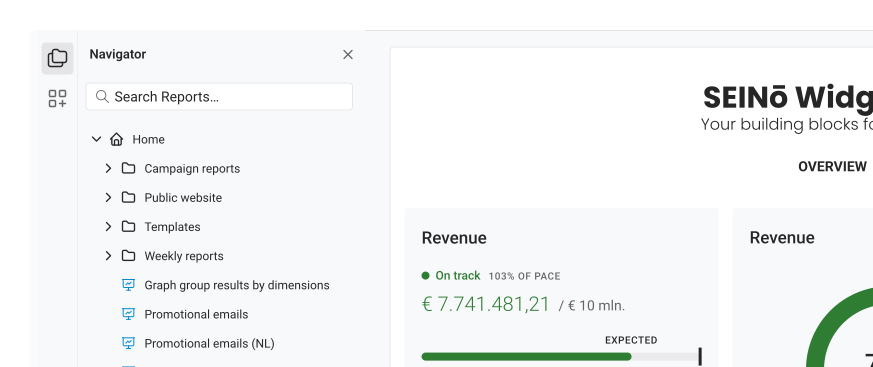
The navigator beside an open dashboard, with the search box and the folder tree under Home

Until now, your report folders lived only on the Home screen. From today, a navigator shows them beside every report, so the next report is always one click away.

Open a report, and the navigator on its left shows your folders and the reports in them, with the one you are on picked out. Click another report to open it.

Looking for one report? Search narrows the tree to the matches and keeps their folders around them.

Everything you do on the Home screen works here too. Create, rename, move and delete reports and folders without leaving the report you are on.

Need more room? Click the Navigator icon to close the navigator.

Preview tabs

Want a quick look at a report? A click opens it in a preview tab, with its title in italics. Click another report, and it opens in that same tab. No more pile of tabs.

Want to keep one? Double-click it, or hold ⌘ (Ctrl on Windows) and click. Editing a report keeps its tab too, so unsaved work is never replaced.

Navigate between reports explains how to use the navigator.

Improvements

  • Reports: Simplified the way to create new dashboards and explorers.
  • Reports: Closed the tabs of reports you delete, so you never land on a report that is gone.
  • Reports: Kept the navigator and the toolbar in place while a report loads, or when it fails to load.
  • Dashboards: Moved the widget gallery to a Widgets tab next to the navigator, so it sits beside the dashboard while you edit.
  • Filters: Made text filters easier to set up: search and pick values in one list, and see which values a filter matches as you type.

Report folders

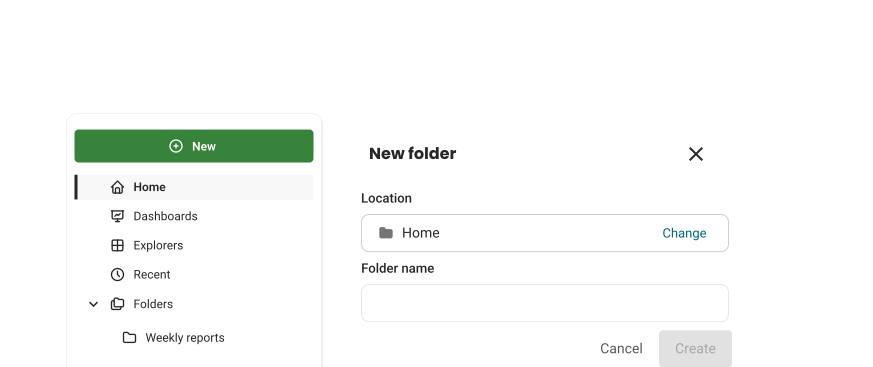
The reports sidebar with Home, the views and a folder tree

Until now, every dashboard and data explorer sat in one list on the Reports page, and the more your team made, the further you scrolled. From today, reports live in folders: a tree you build yourself, as deep as you need.

A sidebar to find your way

Home is the top of your tree, and Folders shows the whole tree at once. Dashboards, Explorers and Recent list reports from every folder, each row with the folder it is in.

Rows that select like files

Click a row to select it. Hold ⌘ (Ctrl on Windows) to add another, or Shift to select a range. Double-click a folder to step into it.

Moving reports

A new report lands in the folder you are standing in. To move one, drag it onto a folder, use the selection bar, or choose Move to… from its menu. Every move can be undone.

Search and sort

Inside a folder, search matches that folder; switch to Everywhere for the whole workspace. The Today, Last 7 days and Older groups are gone: click a column header to sort by name or date.

Who can do what

Folders belong to the workspace, so anyone in it can create, rename and move them. Deleting a folder that holds reports asks what happens to them.
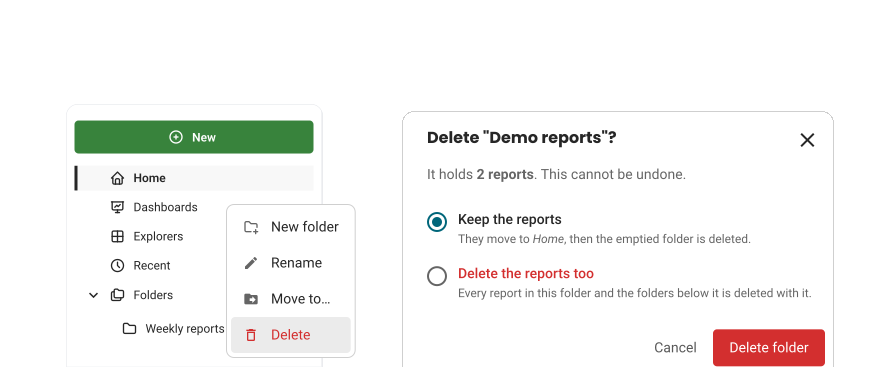
Delete in a folder’s menu, and the dialog that follows with the choices Keep the reports and Delete the reports too

Reports keep their own access: moving one needs edit access to it, and deleting one needs full access.

Folders are on for everyone. Labels are unchanged: a report lives in one folder and carries as many labels as you like. Organize reports in folders explains how to create, move, rename and delete folders. Say what you think of them in the chat.

Fixes

  • Filters: A filter’s value list stays open when you pick a value, and keeps your search term.