
Report folders
Put dashboards and explorers in folders you build yourself, and find them again from the sidebar instead of one long list.
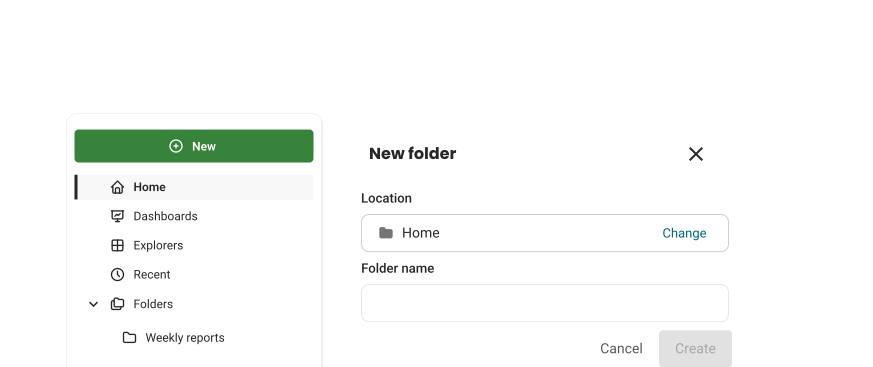
Until now, every dashboard and data explorer sat in one list on the Reports page, and the more your team made, the further you scrolled. From today, reports live in folders: a tree you build yourself, as deep as you need.
A sidebar to find your way
Home is the top of your tree, and Folders shows the whole tree at once. Dashboards, Explorers and Recent list reports from every folder, each row with the folder it is in.
Rows that select like files
Click a row to select it. Hold ⌘ (Ctrl on Windows) to add another, or Shift to select a range. Double-click a folder to step into it.
Moving reports
A new report lands in the folder you are standing in. To move one, drag it onto a folder, use the selection bar, or choose Move to… from its menu. Every move can be undone.
Search and sort
Inside a folder, search matches that folder; switch to Everywhere for the whole workspace. The Today, Last 7 days and Older groups are gone: click a column header to sort by name or date.
Who can do what
Folders belong to the workspace, so anyone in it can create, rename and move them. Deleting a folder that holds reports asks what happens to them.
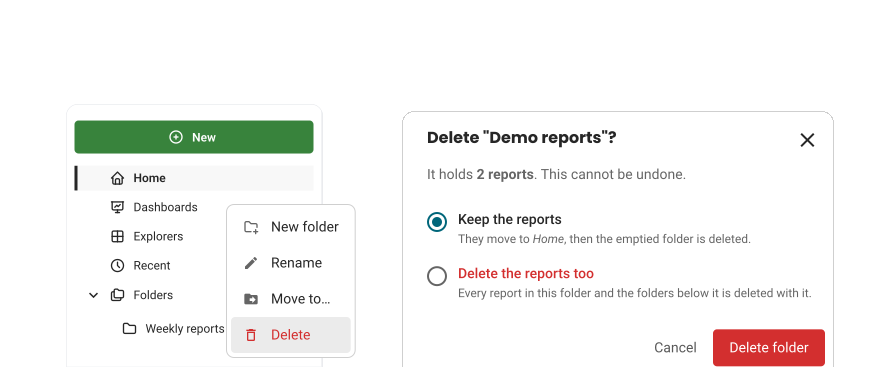
Reports keep their own access: moving one needs edit access to it, and deleting one needs full access.
Folders are on for everyone. Labels are unchanged: a report lives in one folder and carries as many labels as you like. Organize reports in folders explains how to create, move, rename and delete folders. Say what you think of them in the chat.
Fixes
- Filters: A filter’s value list stays open when you pick a value, and keeps your search term.