
Connect Bloomreach Engagement to SEINō and import campaign event exports into your workspace
Connect Bloomreach Engagement to SEINō by exporting campaign event data daily to Google Cloud Storage. SEINō imports those files into your workspace for campaign reporting and analysis.
Bloomreach Engagement → Google Cloud Storage → SEINō
Supported data: campaign events Not included: customer or profile data
What SEINō receives
Section titled “What SEINō receives”SEINō receives a daily CSV export of Bloomreach events. Each export row represents one event, and SEINō maps the columns you choose in Bloomreach into your workspace.
The integration depends on Bloomreach’s Google Cloud Storage for Imports and Exports feature. Bloomreach writes the export to a Google Cloud Storage location, and SEINō reads the file from there.
Required campaign event attributes
Section titled “Required campaign event attributes”Use the following event attributes in the Bloomreach export. These columns are the minimum required for the SEINō integration to work as expected.
| Attribute | Description |
|---|---|
timestamp |
Timestamp of the campaign event. |
status |
Status or type of the campaign event. |
contact hard ID |
Use the hard contact ID field configured in your Bloomreach instance. The exact field name can vary by setup. |
sent_timestamp |
Timestamp when the message was sent. |
campaign_id |
Unique campaign identifier. |
url |
URL associated with the event, where applicable. |
All other campaign event attributes are optional. You can include additional campaign event attributes to enrich reporting in SEINō. For the full list of standard campaign attributes available in Bloomreach, see Campaign events.
Set up integration
Section titled “Set up integration”Set up Bloomreach in two steps:
- Connect Google Cloud Storage.
- Create the recurring event export.
You need both parts in place before data can flow into SEINō.
Before you start, make sure you have:
- access to the Bloomreach workspace where the export will run
- permission to create and schedule exports in Bloomreach
- the SEINō bucket name (ask our support to provide it)
- the SEINō service account credentials, provided securely by SEINō support
- access to Bloomreach’s Google Cloud Storage for Imports and Exports integration feature
If that Bloomreach feature is not available in the account, the customer needs to contact their Bloomreach account manager.
Step 1: Connect Google Cloud Storage
Section titled “Step 1: Connect Google Cloud Storage”SEINō support provides the bucket name and the credentials you need to configure Bloomreach’s Google Cloud Storage integration.
Follow Bloomreach’s instructions for Google Cloud Storage for Imports and Exports to create the connection.
Step 2: Create the recurring event export
Section titled “Step 2: Create the recurring event export”Follow these steps in Bloomreach:
-
Open Data & Assets > Exports.
-
Create a new export.
-
Choose Events.
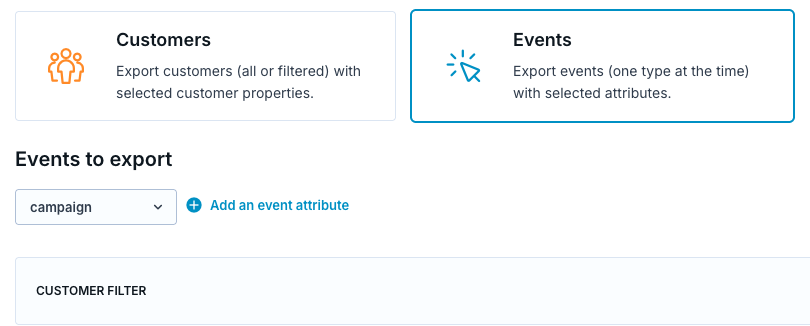
-
Add the event attributes you want to export to SEINō, including the required columns listed above.
-
Choose the export format:
CSV- comma delimiter
UTF-8encoding
-
Select the target storage:
- file storage: the Google Cloud Storage integration you created earlier
- path to parent directory:
bloomreach(our recommended default; if you connect multiple Bloomreach accounts, choose a unique path per account to avoid collisions) - file name:
campaign_events_%Y%m%d.csv
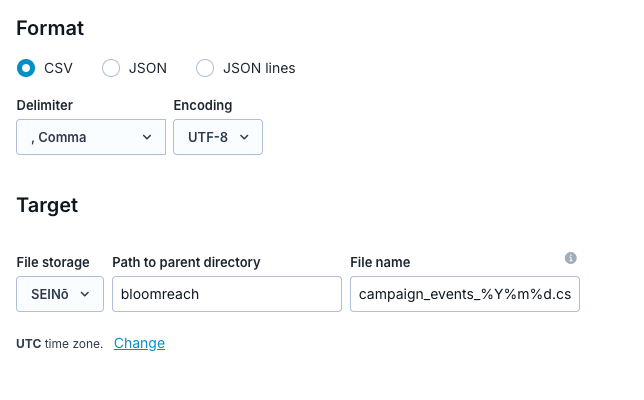
-
Set the schedule:
- repeated export
- daily is recommended
03:00UTC- lifetime
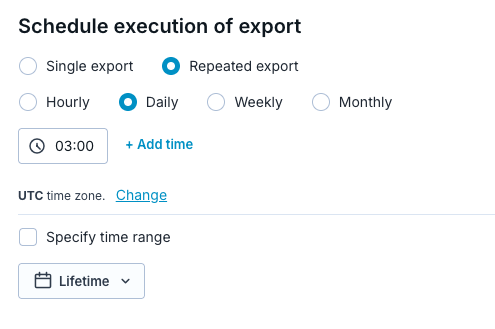
-
Save the export.
Once the export is running, SEINō can map the exported event columns to your workspace.
Add additional event attributes
Section titled “Add additional event attributes”The Bloomreach setup is driven by the event attributes you include in the export.
If you need SEINō to receive more event context, add those attributes to the Bloomreach export and keep the column names stable. More fields usually mean more detailed reporting. SEINō support may need to map new or changed fields on our side because this integration is a custom setup.
Refresh cadence
Section titled “Refresh cadence”SEINō recommends running the export daily at 03:00 UTC, but the exact schedule can be adjusted with SEINō support.
If the export succeeds, Bloomreach writes a new file to the Google Cloud Storage target and SEINō picks it up from there.
After setup
Section titled “After setup”Once the export is configured, SEINō starts importing the files on the agreed schedule. If you add more campaign event attributes later, SEINō can usually sync them too, as long as the column names stay stable and the mapping is updated when needed.
Validate the export
Section titled “Validate the export”You can start a run directly in Bloomreach to check whether the export itself works. That is a good way to verify the file generation before the first scheduled run.
For the full end-to-end sync into SEINō, contact SEINō support so the connection and mapping can be set up on our side.
Limits and notes
Section titled “Limits and notes”This Bloomreach integration only supports events.
- Customers are out of scope for this setup.
- The export must use the Bloomreach Google Cloud Storage for Imports and Exports feature.
- SEINō support provides the bucket name and service account credentials.
- Support may need to map new fields before the import is useful in your workspace.
- Keep the export file name and required columns stable so the mapping stays predictable.
Troubleshooting
Section titled “Troubleshooting”If a scheduled export fails or data seems to be missing, contact SEINō support. SEINō monitors data syncs, and a failed export does not break the integration, but the data in SEINō will be incomplete until the next successful run.
Bloomreach documentation
Section titled “Bloomreach documentation”For detailed information about the Bloomreach and SEINō integration, see the official Bloomreach documentation: Bloomreach integration guide.
Bloomreach also documents the export flow in Data exports.
Privacy and DPA
Section titled “Privacy and DPA”This export can include PII such as email addresses or customer identifiers. Customers using SEINō agree to SEINō’s privacy and DPA terms, which are available at seino.ai/legal.