
Easier navigation between reports
Navigate between reports without going back to the Home screen.
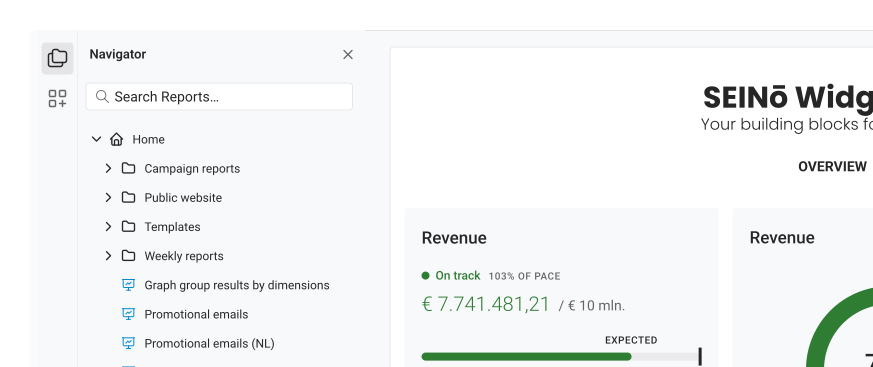
Until now, your report folders lived only on the Home screen. From today, a navigator shows them beside every report, so the next report is always one click away.
Sidebar navigator
Open a report, and the navigator on its left shows your folders and the reports in them, with the one you are on picked out. Click another report to open it.
Looking for one report? Search narrows the tree to the matches and keeps their folders around them.
Everything you do on the Home screen works here too. Create, rename, move and delete reports and folders without leaving the report you are on.
Need more room? Click the Navigator icon to close the navigator.
Preview tabs
Want a quick look at a report? A click opens it in a preview tab, with its title in italics. Click another report, and it opens in that same tab. No more pile of tabs.
Want to keep one? Double-click it, or hold ⌘ (Ctrl on Windows) and click. Editing a report keeps its tab too, so unsaved work is never replaced.
Navigate between reports explains how to use the navigator.
Improvements
- Reports: Simplified the way to create new dashboards and explorers.
- Reports: Closed the tabs of reports you delete, so you never land on a report that is gone.
- Reports: Kept the navigator and the toolbar in place while a report loads, or when it fails to load.
- Dashboards: Moved the widget gallery to a Widgets tab next to the navigator, so it sits beside the dashboard while you edit.
- Filters: Made text filters easier to set up: search and pick values in one list, and see which values a filter matches as you type.